In Browser Chrome by Google or Firefox and Thunderbird by Mozilla môžete v základnom prevedení upraviť iba jedno nastavenie internetového pripojenia. Ak chcete vybrať priame pripojenie alebo rôzne nastavenia proxy, potom musíte dialóg "Nastavenia pripojenia" použiť viackrát samostatne.
S ProxySwitch môžete spravovať rôzne nastavenia a jednoducho sa medzi nimi prepínať. The following documentation describes the complete range of functions. The extension contains the appropriate documentation.
Firefox
From Firefox 57, the previously used native interface (XUL) has been omitted, this caused a complete reprogramming with the new interface WebExtension of Firefox. This interface does not yet contain all previous functions. Therefore, in the extension ProxySwitch for WebExtension the affected function is removed first.
Chromium
Browsers that use the open source project Chromium, e.g. Google Chrome, Microsoft Edge or Vivaldi. These browsers use the system setting for proxy configuration by default. If the extension is activated, the system setting is not used. The settings specified in the extension are then used! However, other programs still use the system settings for access to the Internet.
Stiahnutie
- MM3-ProxySwitch - Firefox Razširitev
Reprogramming with WebExtension for Firefox 60 - MM3-ProxySwitch - Chrome Razširitev
WebExtension for Chrome
Gratis version (freeware and open source)
Requested permissions
Installation
For Firefox version 67 or higher
So that the MM3-ProxySwitch to change the proxy settings, you must allow this extension to use private windows. After that you can use the extension permanently.
Do this as follows
- In the Firefox menu: Tools / Add-ons (or keyboard: Ctrl + Shift + A or Url: about:addons)
- Select the category: Extensions
- Select the extension: MM3-ProxySwitch
- Allow: Run in Private Windows
Používanie
- Kliknutím na symbol ProxySwitch prepínate medzi priamym pripojením k internetu a nastaveným proxy.
You recognize the used connection by the symbol:- direct Internet connection
- a proxy configuration (If you don't use symbols in the Firefox, the configuration name is then highlighted in addition.)
Tool Tipp
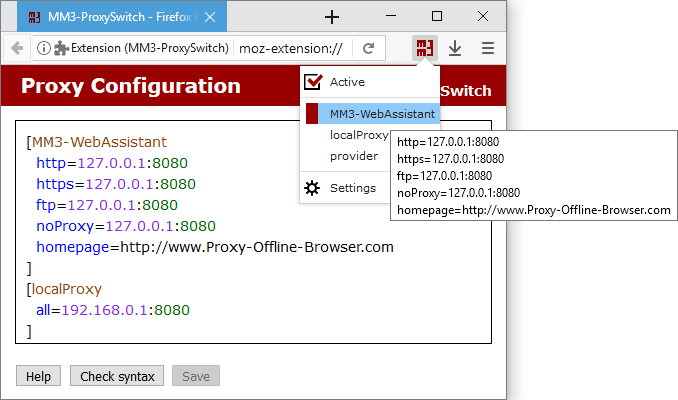
The name of the used configuration is displayed.
- Môžete vybrať nastavenie proxy z vyskakovacej ponuky.
- Môžete upraviť nastavenia v ponuke Settings.
Structure of the proxy configuration
Každé nastavenie má definovaný názov a začína znakom [ a končí znakom ].
Tento názov je zobrazený vo vyskakovacej ponuke.
Znaky [ a ] ako aj každý protokol musia byť v novom riadku.
Tak ako v nasledujúcej ukážke.
Ukážka
[Name
  http=...
]
Nastavenia proxy
You can use the following keywords for the configuration:
Syntax
http  =IP address:[  80|port]
https =IP address:[ 443|port]
ftp   =IP address:[  21|port]
all   =IP address:[  80|port]
socks =IP address:[1080|port]
socks4=IP address:[1080|port]
noProxy=...
url=...
- http, https, ftp and SOCKS
- Môžete použiť nasledujúce protokoly
- all
- The same proxy is used for all protocols.
- Môžete definovať viac domén s atribútom noProxy, pre ktoré proxy nebude použitý.
- Several domains are separated by a comma. This corresponds to the syntax of Firefox.
- url
- URL to the script for the automatic proxy configuration.
With the parameter reload the script is loaded newly when switching.
Ukážka
[MM3-WebAssistant
  http   =127.0.0.1:8080
  ssl    =127.0.0.1:8080
  ftp    =127.0.0.1:8080
  noProxy=127.0.0.1:8080
]
[localProxy
  all=192.168.0.1:8080
]
[provider
  http=HTTP-Proxy of you provider
]
[script
  url=http://www.example.com/proxy.pac
]
Predefined proxy configurations
The following two proxy configurations are predefined. These can be extended with additional settings.
Syntax
[System
  ...
]
[Auto
]
- System
- Use system proxy settings.
- Auto
- Auto-detect proxy settings for this network.
Homepage
When switching over the proxy configuration a other homepage can be displayed. To this you indicate the homepage at the respective proxy configuration with the keyword homepage.
Syntax
homepage=URLUkážka
[MM3-WebAssistant
  http=...

  homepage=https://Proxy-Offline-Browser.com
]
Delete browser cache
Before you use the Offline Browser WebAssistant - Proxy Offline Browser, the cache of your browser should be deleted. With the keyword clear this is carried out automatically.
Syntax
clear=cacheUkážka
[MM3-WebAssistant
  http=...

  clear=cache
]
Shortcut
To switch between different proxy configurations, you can use the following four keyboard shortcuts:
Ctrl+Shift+1
...
Ctrl+Shift+4
The first four proxy configurations are activated or switched over.
Note
If another extension already uses the same shortcut, you must decide which extension this shortcut should use. In this case, delete both extensions and install the extension that should use this shortcut first.
Note
You can now define the four shortcuts yourself. This allows you, for example, to avoid the conflict described above.
See: https://support.mozilla.org/en-US/kb/manage-extension-shortcuts-firefox
Activation of a proxy configuration
If you select a proxy configuration, then this is immediately used per default. With active=no the select configuration is entered. The direct connection to the internet is used, however.
Syntax
active=[yes|no]Ukážka
[MM3-WebAssistant
  http=...

  active=no
]
Note
This is obvious if you use the automation of the proxy configuration and you don't need a proxy at every location.
Change symbol
The keyword symbol can be used to change the representation for a proxy configuration. This allows each active proxy configuration or a direct Internet connection to be displayed differently.
Syntax
symbol=[color:color value;] [colorActive:color value;] [shape[:square]]
- color:color value
- For a direct Internet connection
Default color value is #808080 for gray - colorActive:color value
- For an active proxy configuration
Default color value is #900 for red
Color value must be specified according to HTML or CSS syntax.
- shape
- By default, the symbol is displayed
- shape:square
- Symbol is displayed as a square
The keywords can be defined inside and outside a proxy configuration; within, the keywords apply only to this proxy configuration.
Ukážka
[MM3-WebAssistant
  http=...
  symbol=colorActive:green
]
[Company
  http=...
  symbol=colorActive:blue;shape:square
]
...
symbol=color:#000
For a direct Internet connection, the symbol is always displayed in "black" (#000). If the proxy configuration MM3-WebAssistant is activated, the symbol MM3 is displayed "green". If the proxy configuration Company is selected, the symbol is displayed as a square. If Company is then activated, the color changes from "black" to "blue".
Comment
Lines can be marked as comment lines. These lines can only contain comments.
Syntax
Comment lines start with the character: #
Ukážka
# These are three comment lines:
# Proxy configuration to use the
# MM3-WebAssistant - Proxy Offline Browser
[MM3-WebAssistant
  http=...
]
DNS lookups
The keyword proxyDNS controls whether DNS lookups for SOCKS version 5 clients happen on the client or on the proxy server. With the value true the proxy server perform DNS lookups.
Syntax
proxyDNS=[false|true]Ukážka
[Company
  socks=...
  proxyDNS=true
]
Note
With the Chrome browser, the proxy server always requests the DNS, so the keyword is omitted.
Automation of the proxy configuration
If you use different networks with your laptop computer, then the required configuration can be determined automatically. There are two possibilities for it.
Automatic switching
Starting the Firefox it is checked whether an URL is available. Into dependence of this test the direct connection to the Internet or the proxy is used.
Syntax
testUrl=URL [direct|proxy|both]
- URL
- URL to be checked.
- Mode
- direct
- Check is executed if you activate in the Firefox: Direct connection to the Internet.
- proxy
- Check is only executed if a proxy configuration is activated.
- both
- Check is always executed
If in the test the URL is available, the proxy configuration is used.
The testUrl can be noted inside and outside a proxy configuration; for inside, the testUrl only applies to this proxy configuration.
Ukážka
[MM3-WebAssistant
  http=...

  testUrl=http://127.0.0.1:8080 both
]
The availability of the WebAssistant - Proxy Offline Browser is checked here. If this proxy has started, then this is used.
IP-Address determines proxy configuration
The IP address used currently determines the matching proxy configuration from several deposited entries.
The respective IP address is the name of the proxy configuration.
If you need an area of IP addresses, then you indicate only the constant part with that the IP address starts.
Optional the configuration with the name: default
This configuration is used, if nones of the given IPs are found.
You see the used syntax at the following example.
Ukážka
- Configurations for the IP adresses:
- IP address: 192.168.0.1
- IP address area: 10.0.0.0 to 10.255.255.255
- One configuration for all other IPs
Enter for this in the editor:
[192.168.0.1
  http=...
]
[10.
  http=...
]
[default
  http=...
]
import=IP
The entry import=IP activates this function
so that at every restart of the Firefox the matching proxy configuration is used.
Alternative: Use the ProxySwitch menu: Import IP
Note
If your computer binds several IPs at the same time, the order of the configurations is importance. The search for a matching IP starts with the last configuration.
Import of the proxy configuration from the Internet Explorer
If your Internet Explorer is already configured automatically into dependence of your network environment, then you can use this configuration also in the Firefox.
This proxy configuration gets the name in the ProxySwitch: IE
Enter for this in the editor:
import=IE
Now every restart of the Firefox imports the active proxy configuration of the Internet Explorer.
Alternative: Use the ProxySwitch menu: Import IE
Note
Function is only available in the Firefox (version 1.5 and higher) for Windows.
Preference config
Would you like to change further preferences at switching of the proxy configuration? You set these to the keyword config: and a preference (name=value) at the respective proxy configuration.
Ukážka
[ProxyDNS
  socks=...

  config:network.proxy.socks_remote_dns=true
]
The preference name network.proxy.socks_remote_dns controls whether DNS lookups for SOCKS v5 clients happen on the client or on the proxy server. With the value true the proxy server perform DNS lookups.
Standard settings
If you liked to assign a standard setting to a keyword, then you give this pre-allocation after the last closing bracket ].
This is possible for the following keywords:
http, ssl, ftp, socks, socks4, socks5,
noProxy,
clear and homepage
Ukážka
[MM3-WebAssistant
  http=...
]
clear=cache
homepage=https://Proxy-Offline-Browser.com
Editor: Format
The type can be formed with CSS syntax for font, size, color, background etc.
Syntax
style:editor=CSS-Syntax
- CSS-Syntax
- Code for the formatting
Ukážka
[MM3-WebAssistant
  http=...
]
style:editor=font-family:monospace;
In the editor the text is displayed with a monospace font.